Setup guides

Setup guides
for number plans

Learn all SLYNUMBER basics with our step-by-step guides.

Getting started: SLYNUMBER account and number setup

Step 1: Go to your device's App Store or Play Store and download the SLYNUMBER app.

Step 2: Once the app is downloaded on your phone, open it and start the sign-up process.

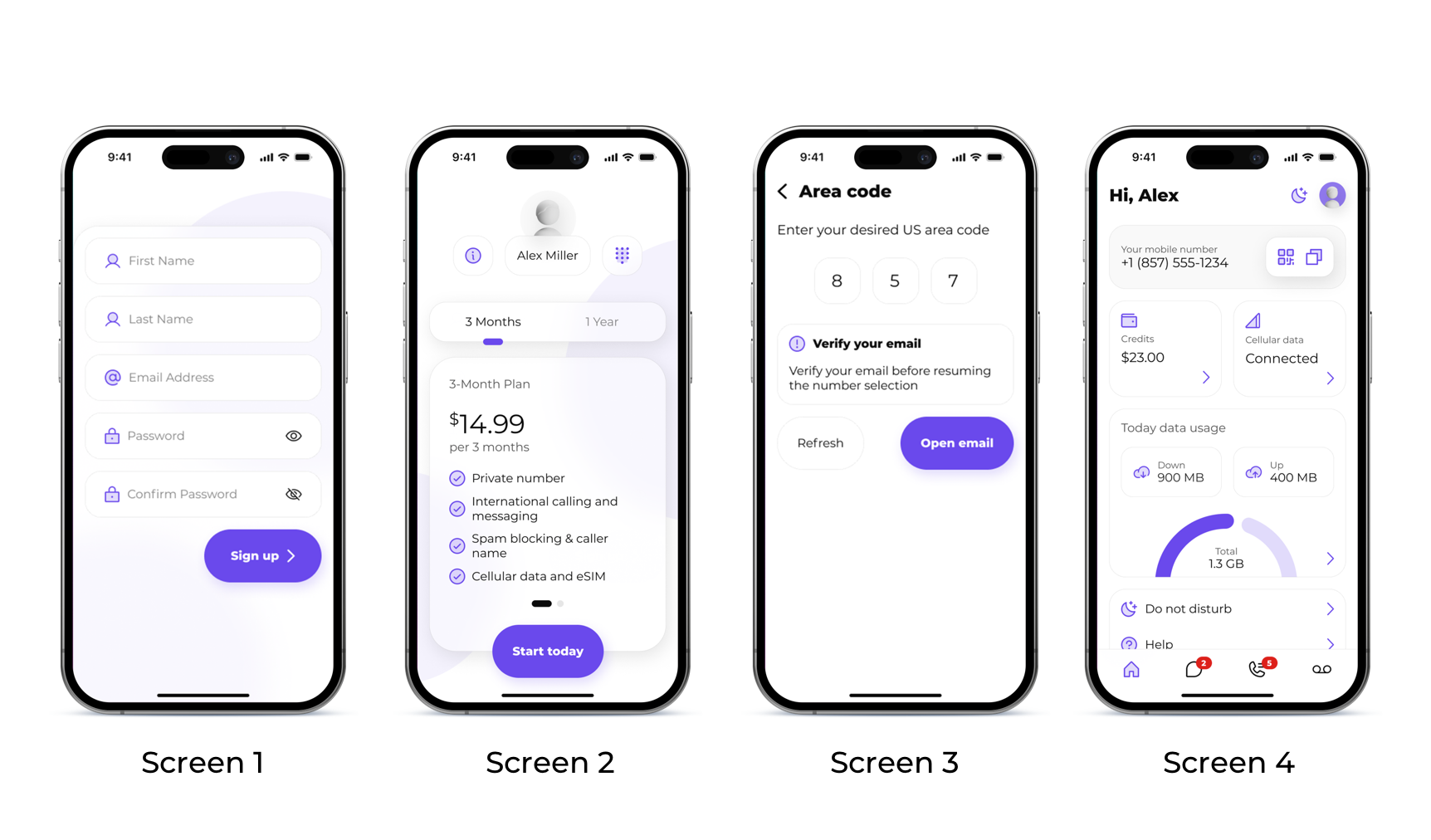
• Enter your information, email, and set up a password (screen 1)

• Select your subscription plan (screen 2)

• Verify your email before resuming with number selection, then enter your preferred area code and pick your new number (screen 3)

Step 3: Your account is all set! You can start using your new SLYNUMBER.
How to make a call

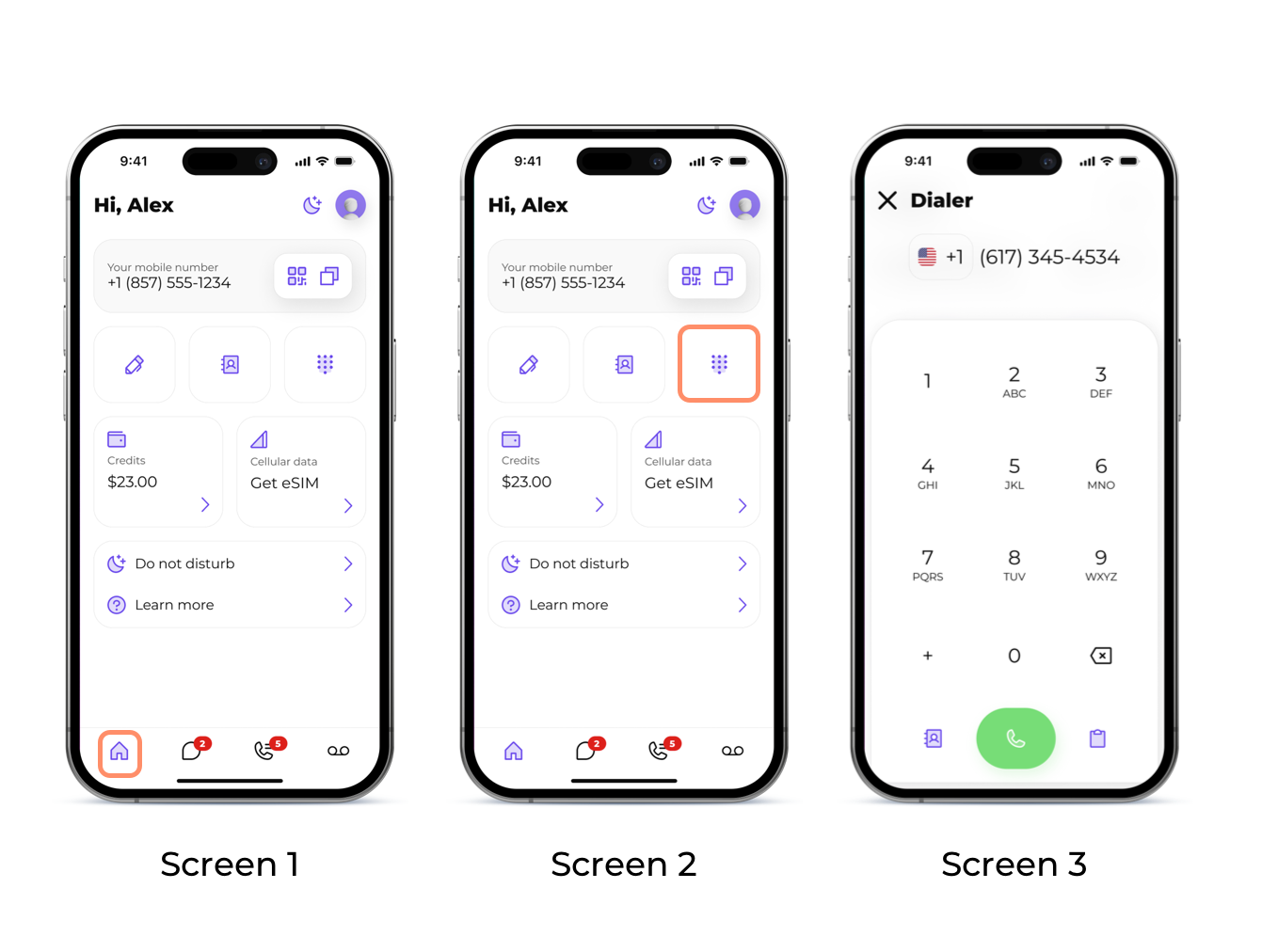
Step 1: To start making call open the home screen in the SLYNUMBER app (Screen 1)

Step 2: To place a call, you have a few options:

• Dial a number

Click on the dial pad icon in the upper right part of the screen; from here, you can enter a number you would like to dial and simply hit the green 'call' button (screen 2)

• Call an existing contact

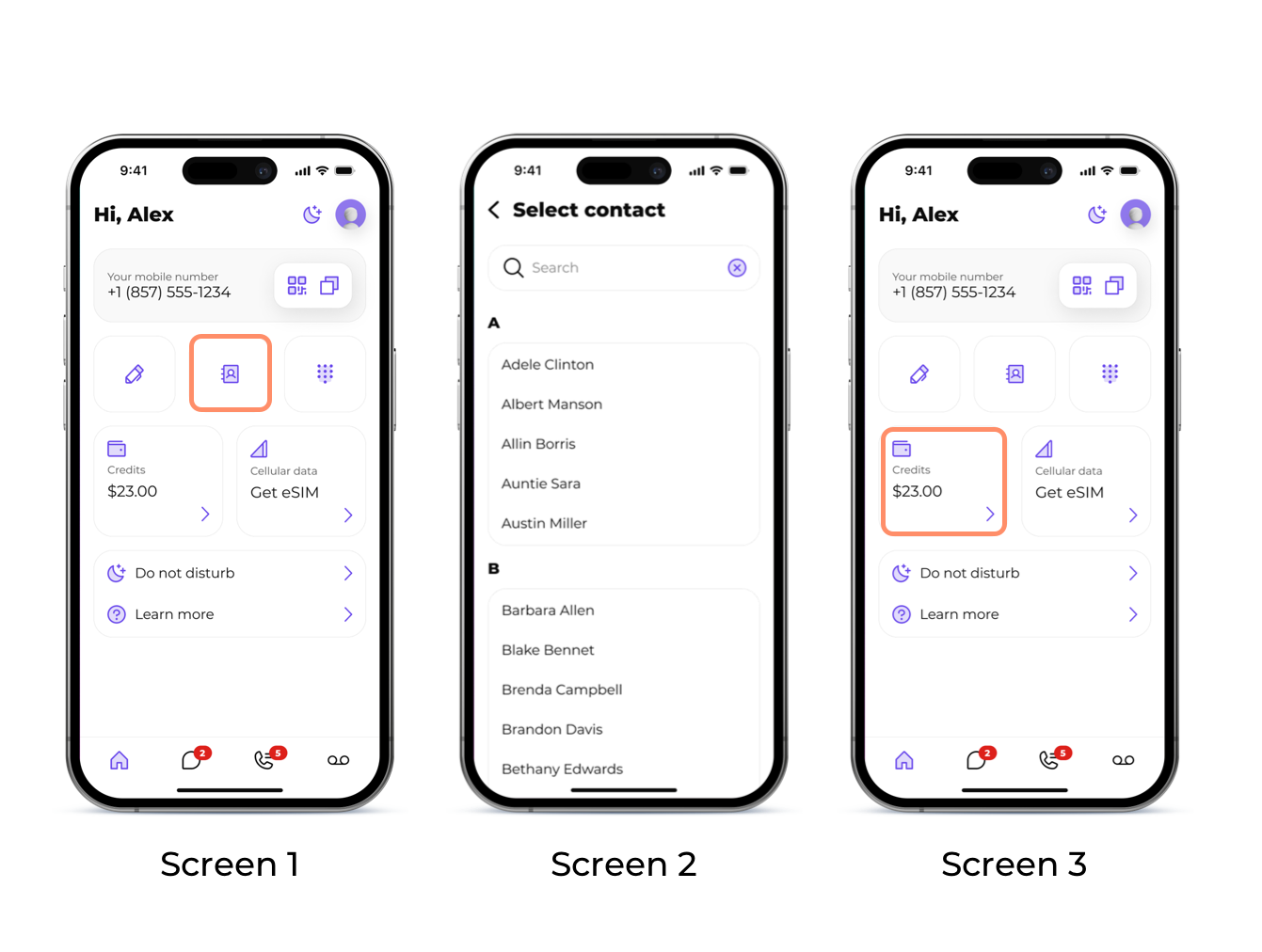
To call an existing contact, click on the contact icon in the middle of the screen and select a contact you'd like to dial (screen 3)

Note: When placing a call, you need to have outbound credits. You can always check your balance on the home screen in the 'credits' field. (screen 4)
How to send a text message

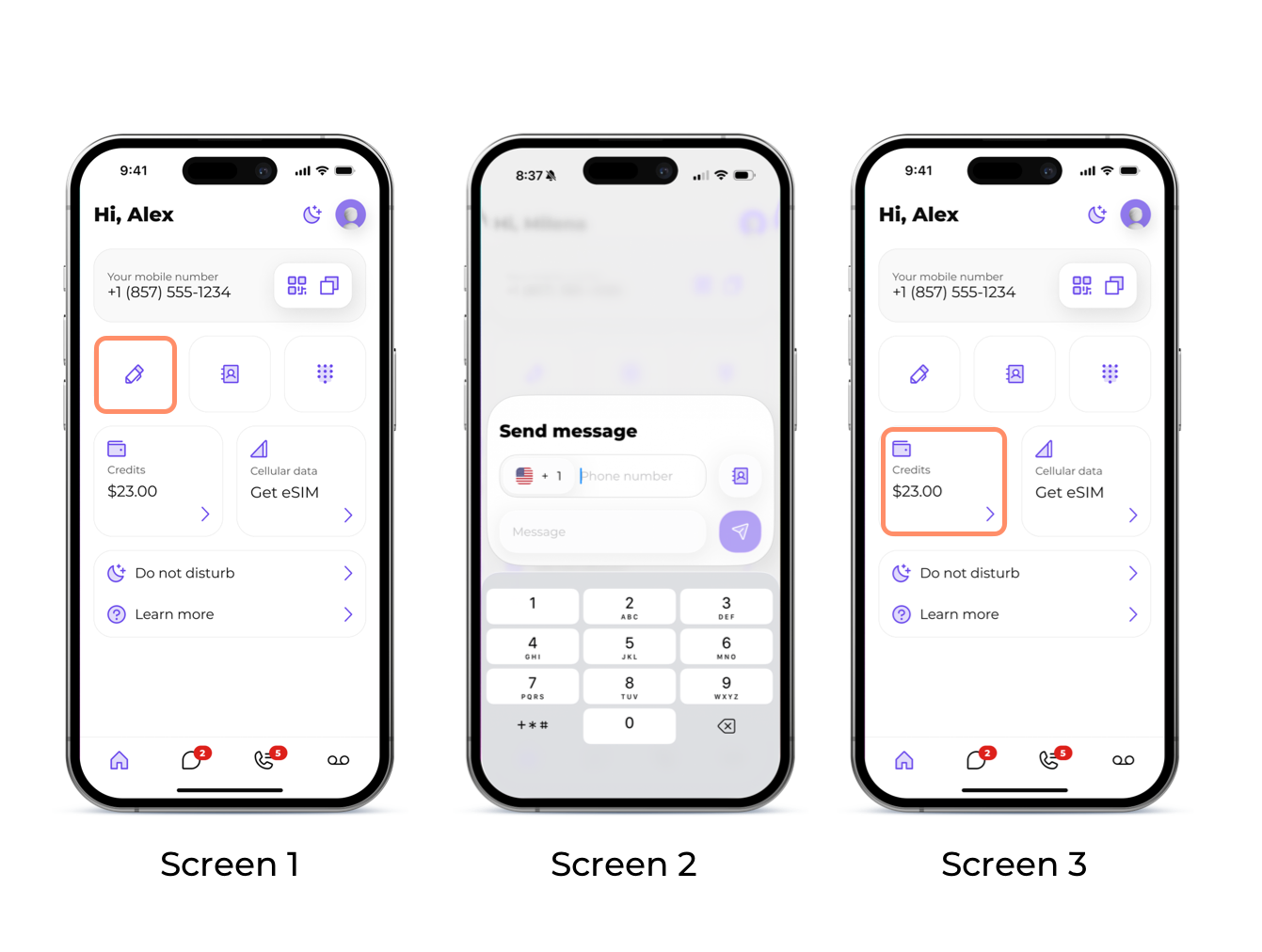
Step 1: To send your first message, open the home screen in the SLYNUMBER app (Screen 1)

Step 2: Click on the pen icon in the upper left part of the screen; from here, you can enter a number you would like to text and simply type in your message and hit send (Screen 2)

Note: When sending texts, you need to have outbound credits. You can always check your balance on the home screen in the 'credits' field (Screen 3)
How to add credits

Step 1: To add credit, open the home screen in the SLYNUMBER app and click on the 'credits' field (Screen 1)

Step 2: Select the amount you would like to purchase and hit 'purchase'. The credits will be automatically added to your balance (Screen 2)
5. How to use in-app features

How to use in-app features

• Block a number

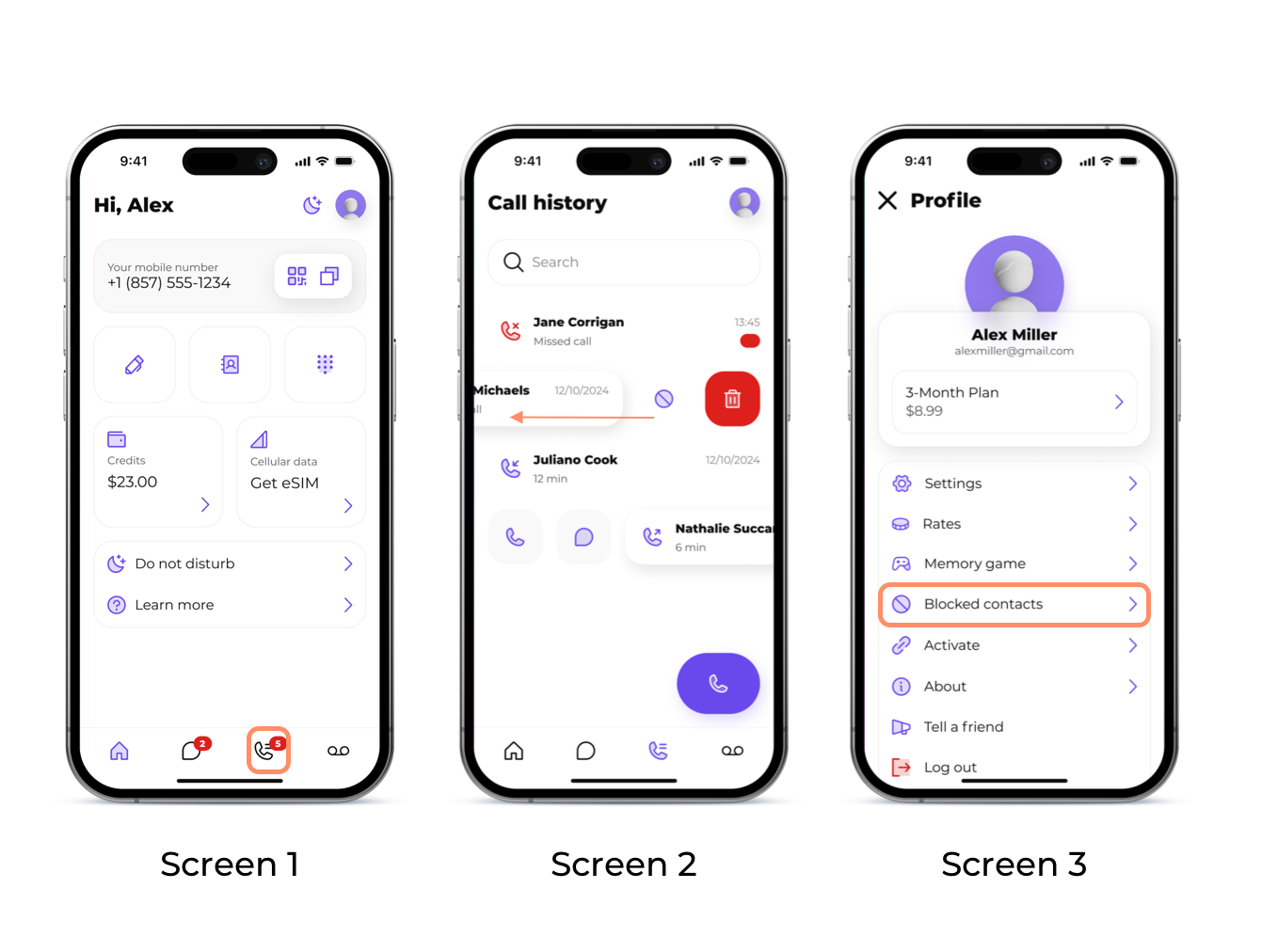
Step 1: To block a number, go to your call log and swipe the name to the left


Step 2: Select the block option by tapping on the block icon

Note: To review your blocked contacts, go to the 'Profile' page and tap on 'Blocked contacts
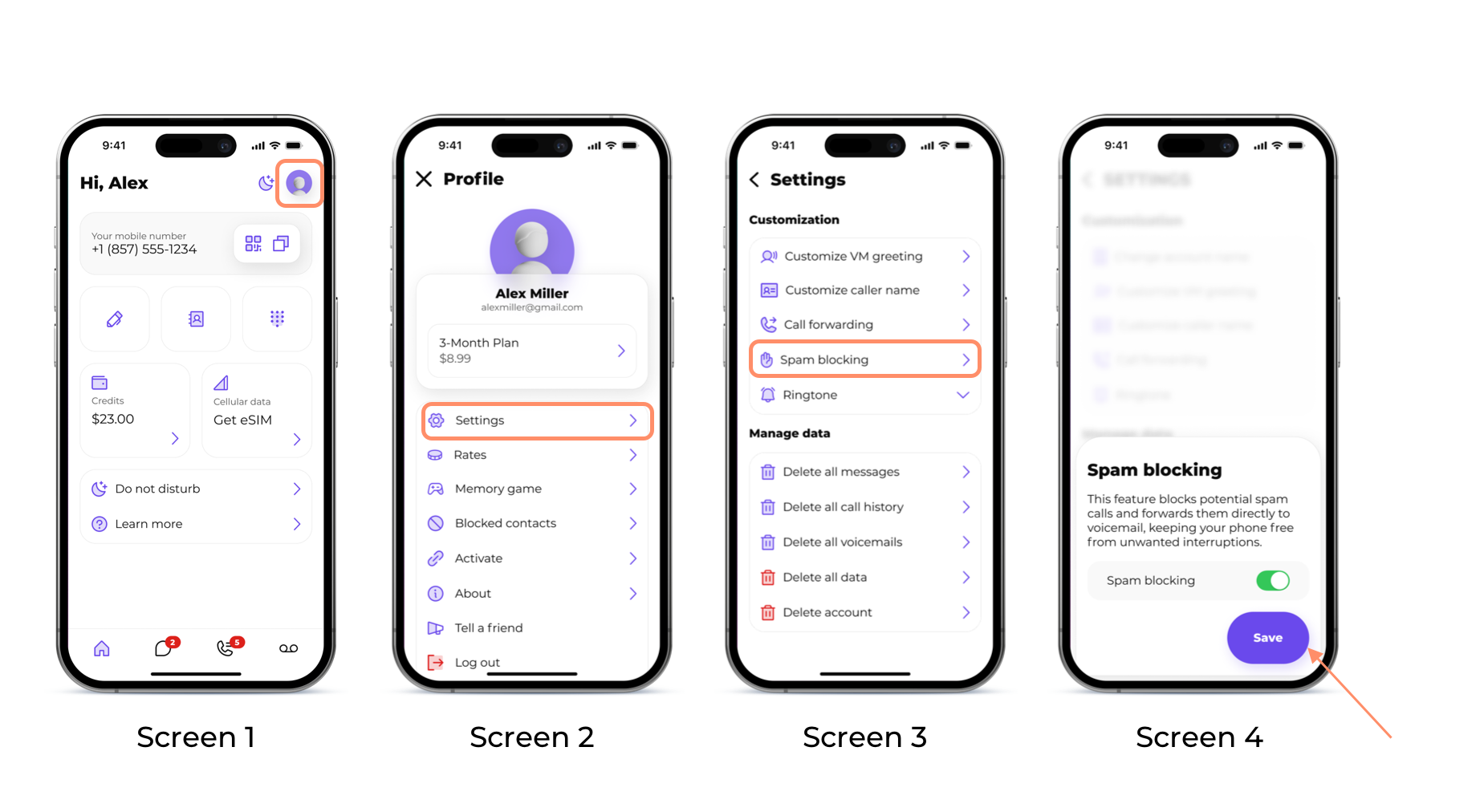
• Spam blocking

Step 1: From the home screen, tap on the 'Profile' icon in the upper right corner of the screen

Step 2: Then tap on the 'settings' button

Step 3: Under the 'Customization' section, tap on the 'Spam blocking' button

Step 4: Activate the 'Spam blocking' by tapping on the toggle button, and press 'Save'
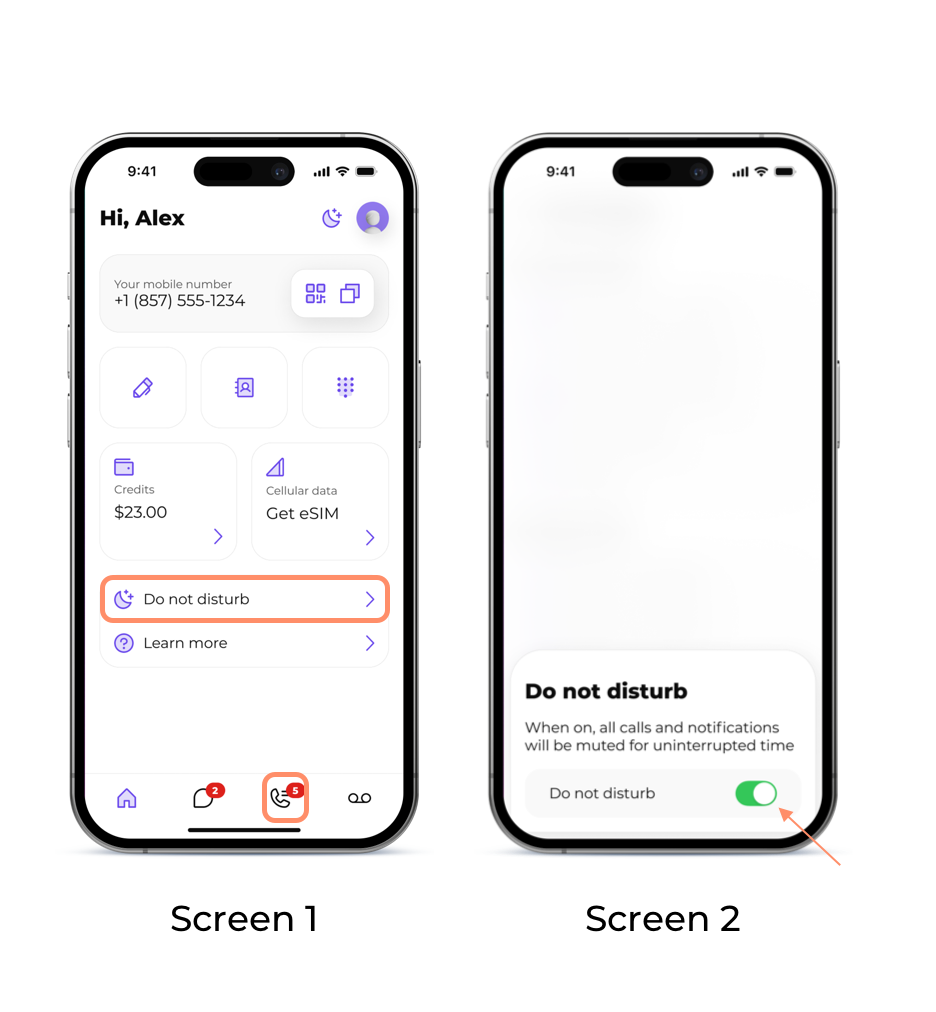
• Do-not-disturbe mode

Step 1: From the home screen, tap on the 'Do not disturb' button

Step 2: Activate the 'Do not disturb' mode by tapping on the toggle button. While this is on, you won't receive notifications or alerts regarding any calls or messages you receive on your SLYNUMBER account.
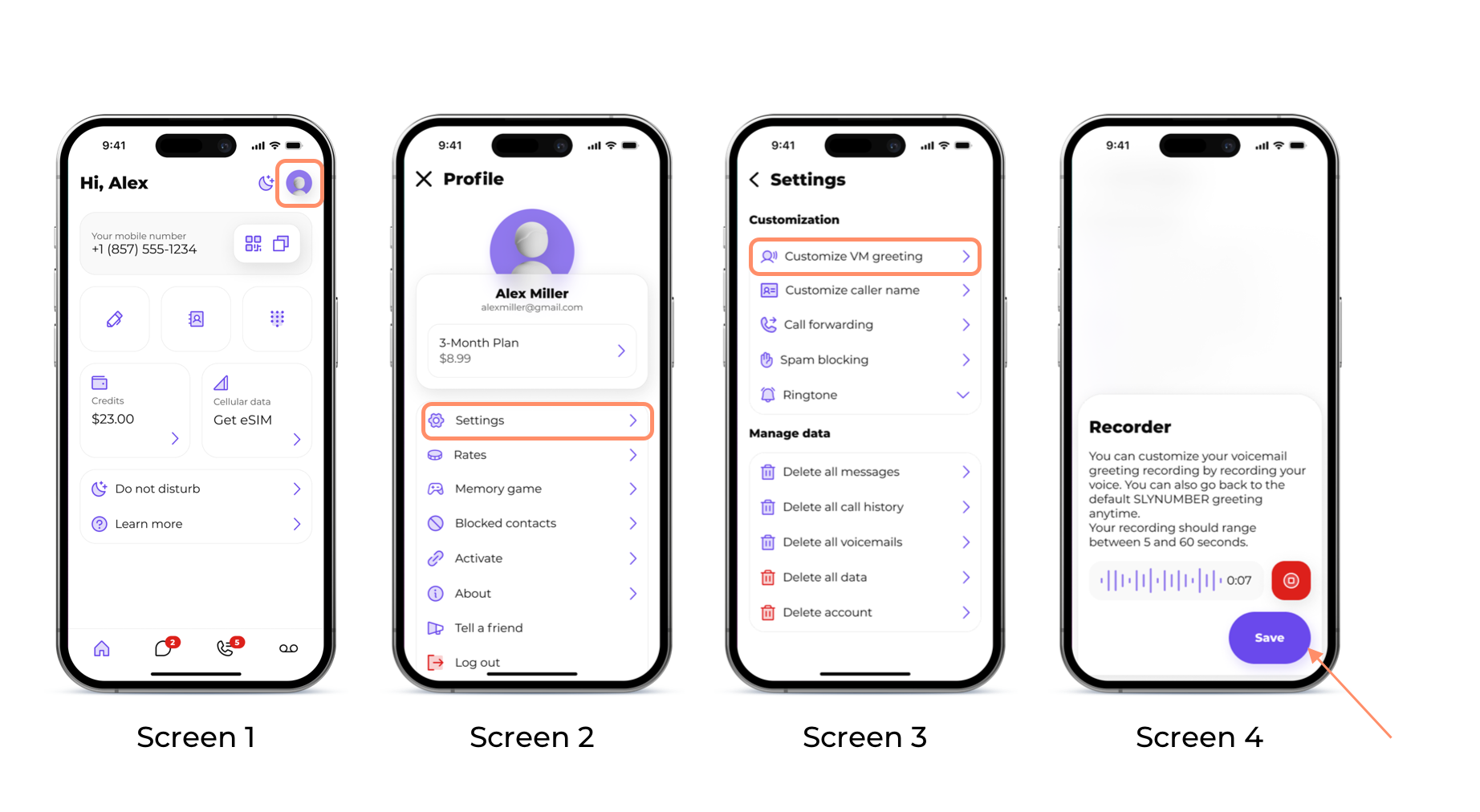
• Customize your voicemail greeting

Step 1: From the home screen, tap on the 'Profile' icon in the upper right corner of the screen

Step 2: Then tap on the 'settings' button

Step 3: Under the 'Customization' section, tap on the 'Customize VM greeting' button

Step 4: Record your cutom greeting and press 'Save'
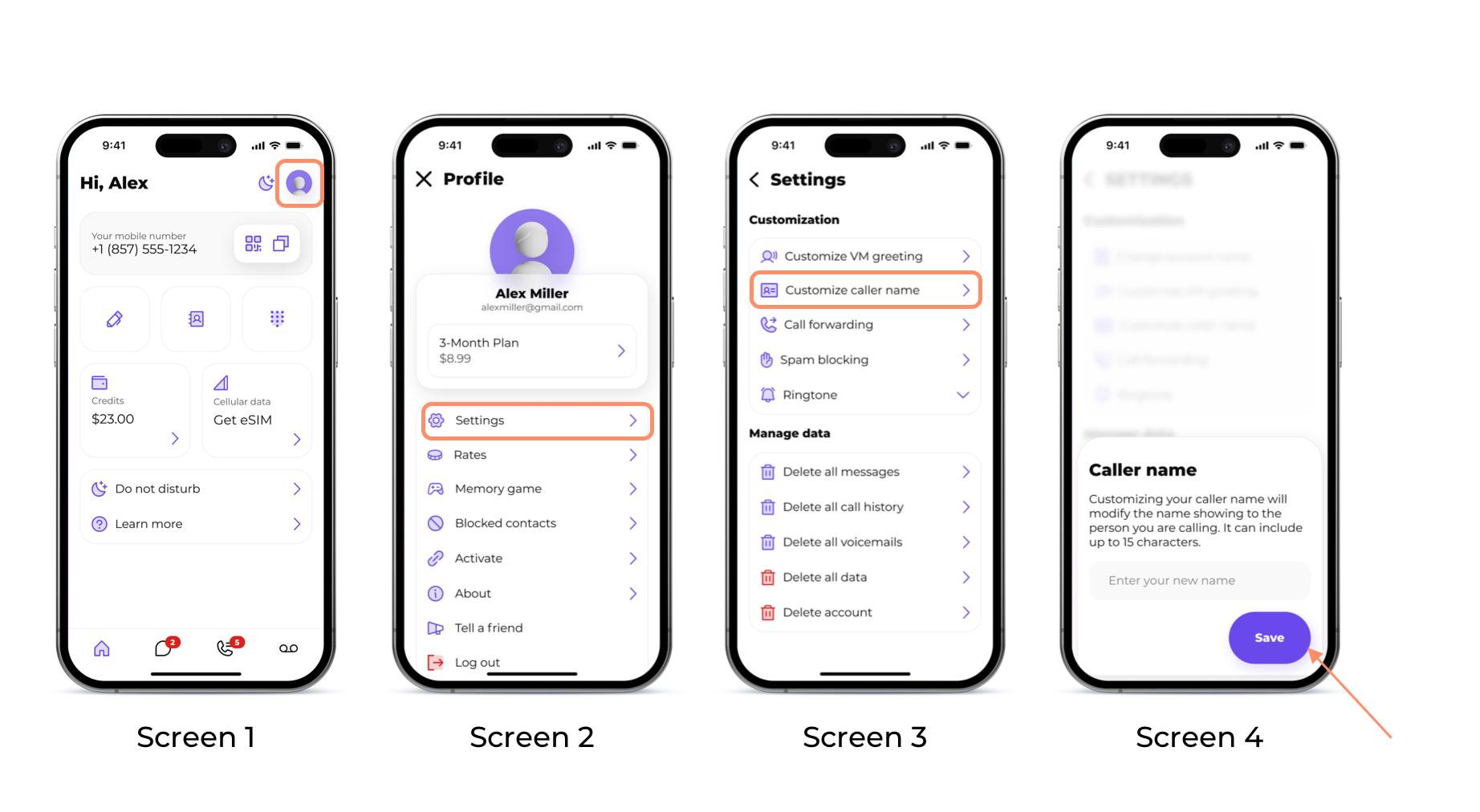
• Customize your caller name

Step 1: From the home screen, tap on the 'Profile' icon in the upper right corner of the screen

Step 2: Then tap on the 'settings' button

Step 3: Under the 'Customization' section, tap on the 'Customize caller name' button

Step 4: Enter the name you would like to appear when you call someone, and press 'Save'
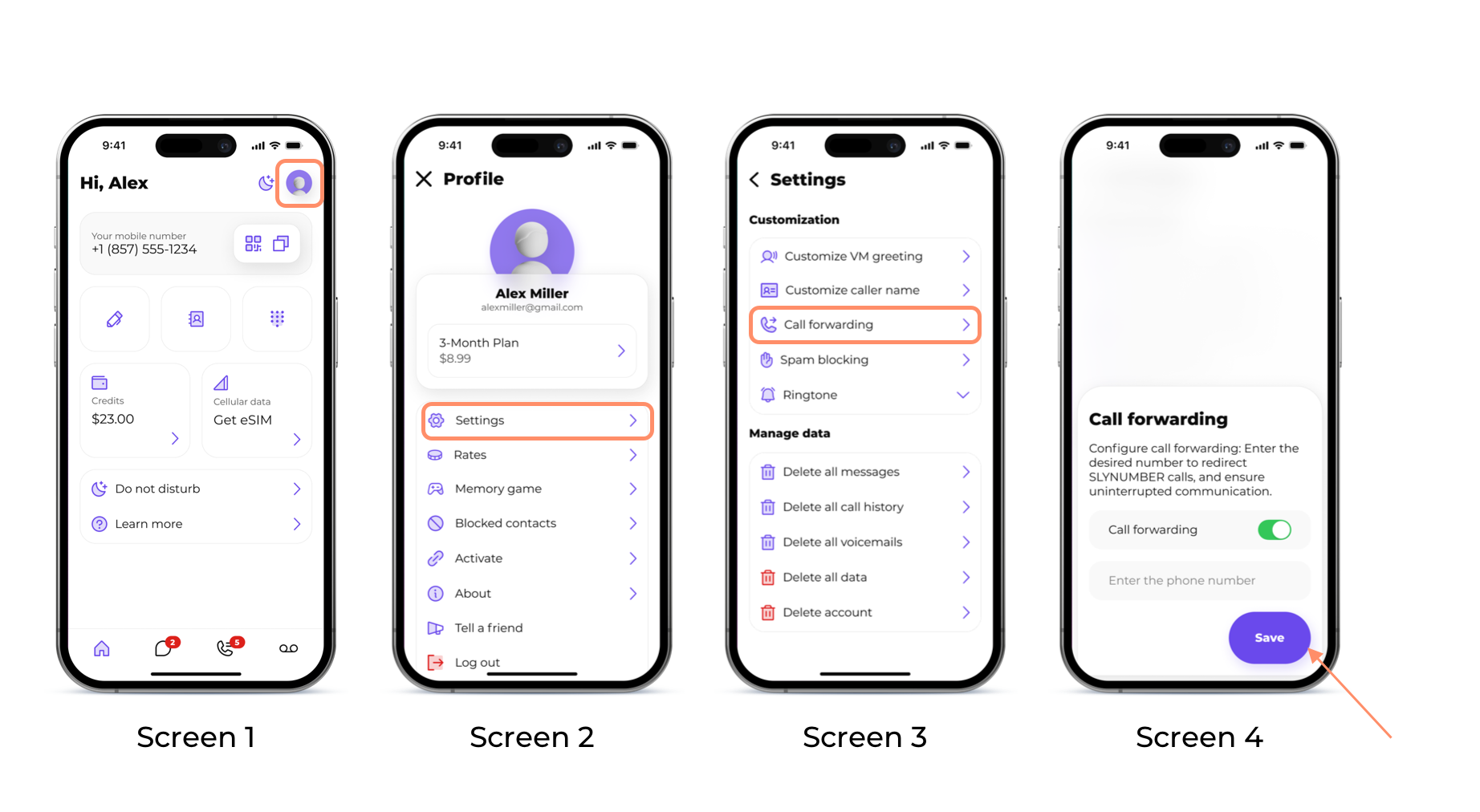
• Call forwarding

Step 1: From the home screen, tap on the 'Profile' icon in the upper right corner of the screen

Step 2: Then tap on the 'settings' button

Step 3: Under the 'Customization' section, tap on the 'Call forwarding' button

Step 4: Enter the number you would like the call forwarded to, and then activate the 'Call forwarding' by tapping on the toggle button and pressing 'Save'
• Customize ringtone

Step 1: From the home screen, tap on the 'Profile' icon in the upper right corner of the screen

Step 2: Then tap on the 'settings' button

Step 3: Under the 'Customization' section, tap on the 'Ring tone' button

Step 4: Select a ring tone you prefer and hit save
-->