


Your number without borders
Download the SLYNUMBER app, choose your U.S. mobile number, and start using it instantly from anywhere in the world.


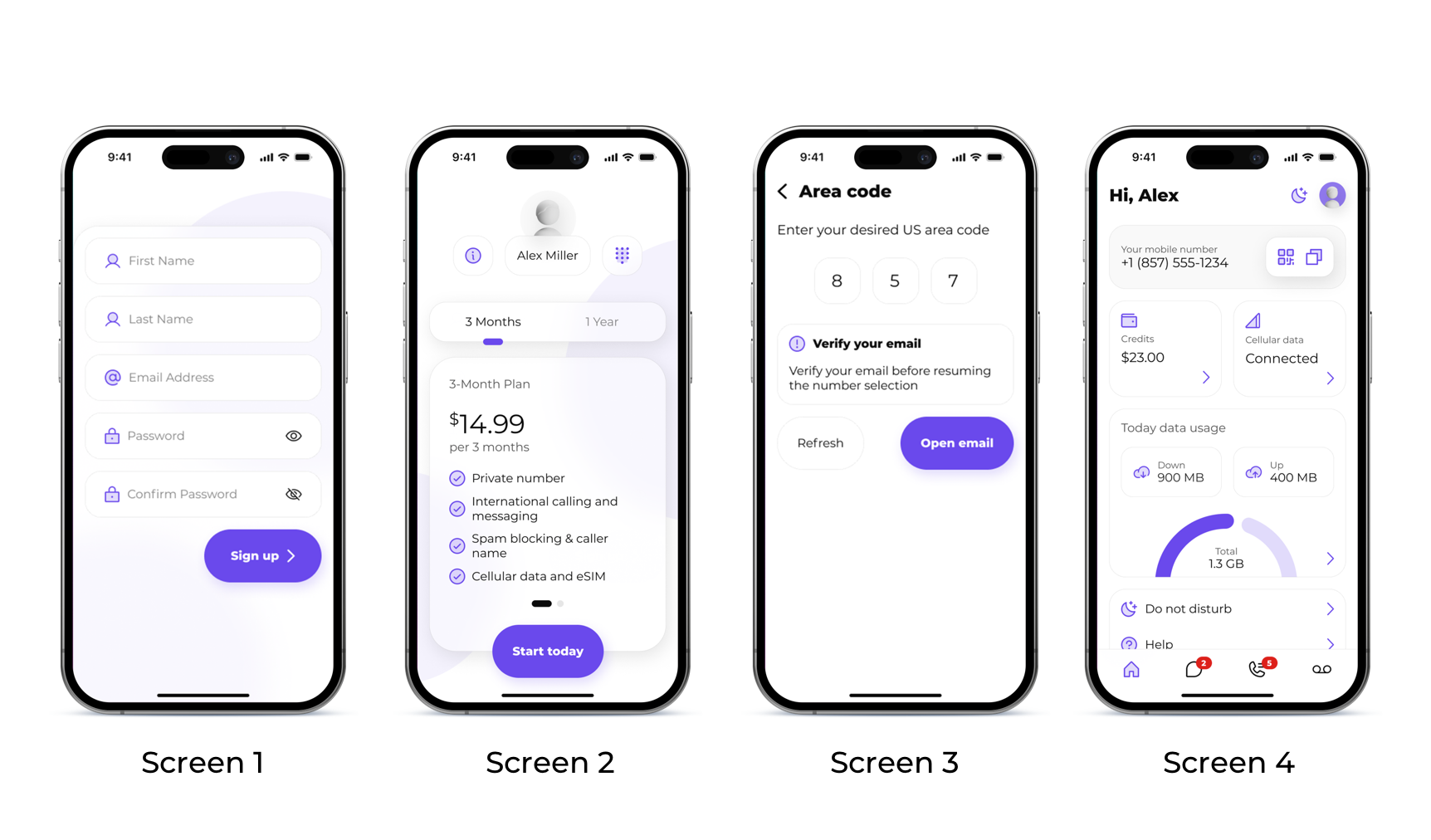
Step 1: Go to your device's App Store or Play Store and download the SLYNUMBER app.
Step 2: Once the app is downloaded on your phone, open it and start the sign-up process.
• Enter your information, email, and set up a password (screen 1)
• Select your subscription plan (screen 2)
• Verify your email before resuming with number selection, then enter your preferred area code and pick your new number (screen 3)
Step 3: Your account is all set! You can start using your new SLYNUMBER.
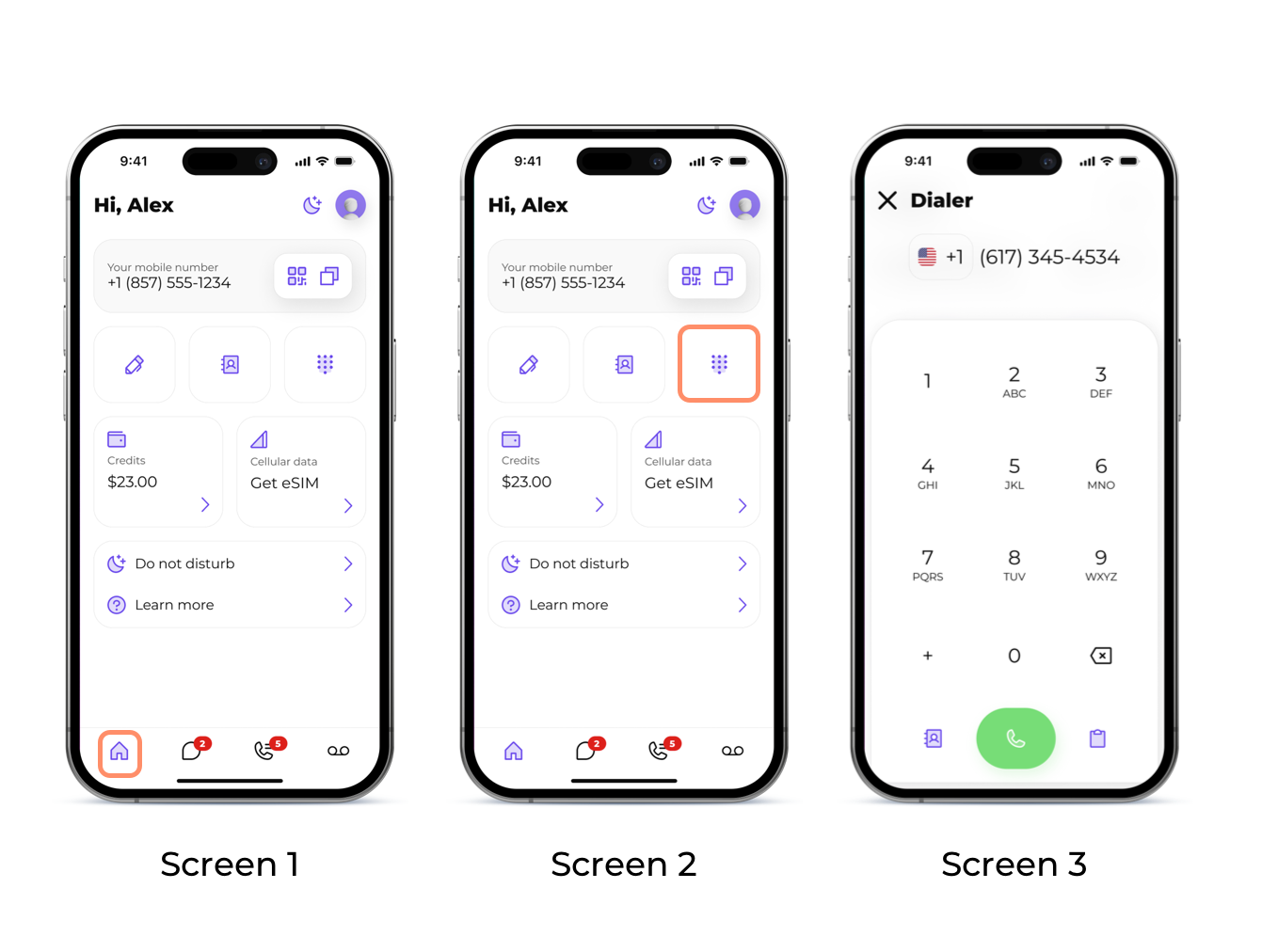
Step 1: To start making call open the home screen in the SLYNUMBER app (Screen 1)
Step 2: To place a call, you have a few options:
Click on the dial pad icon in the upper right part of the screen; from here, you can enter a number you would like to dial and simply hit the green 'call' button (screen 2)
To call an existing contact, click on the contact icon in the middle of the screen and select a contact you'd like to dial (screen 3)
Note: When placing a call, you need to have outbound credits. You can always check your balance on the home screen in the 'credits' field. (screen 4)
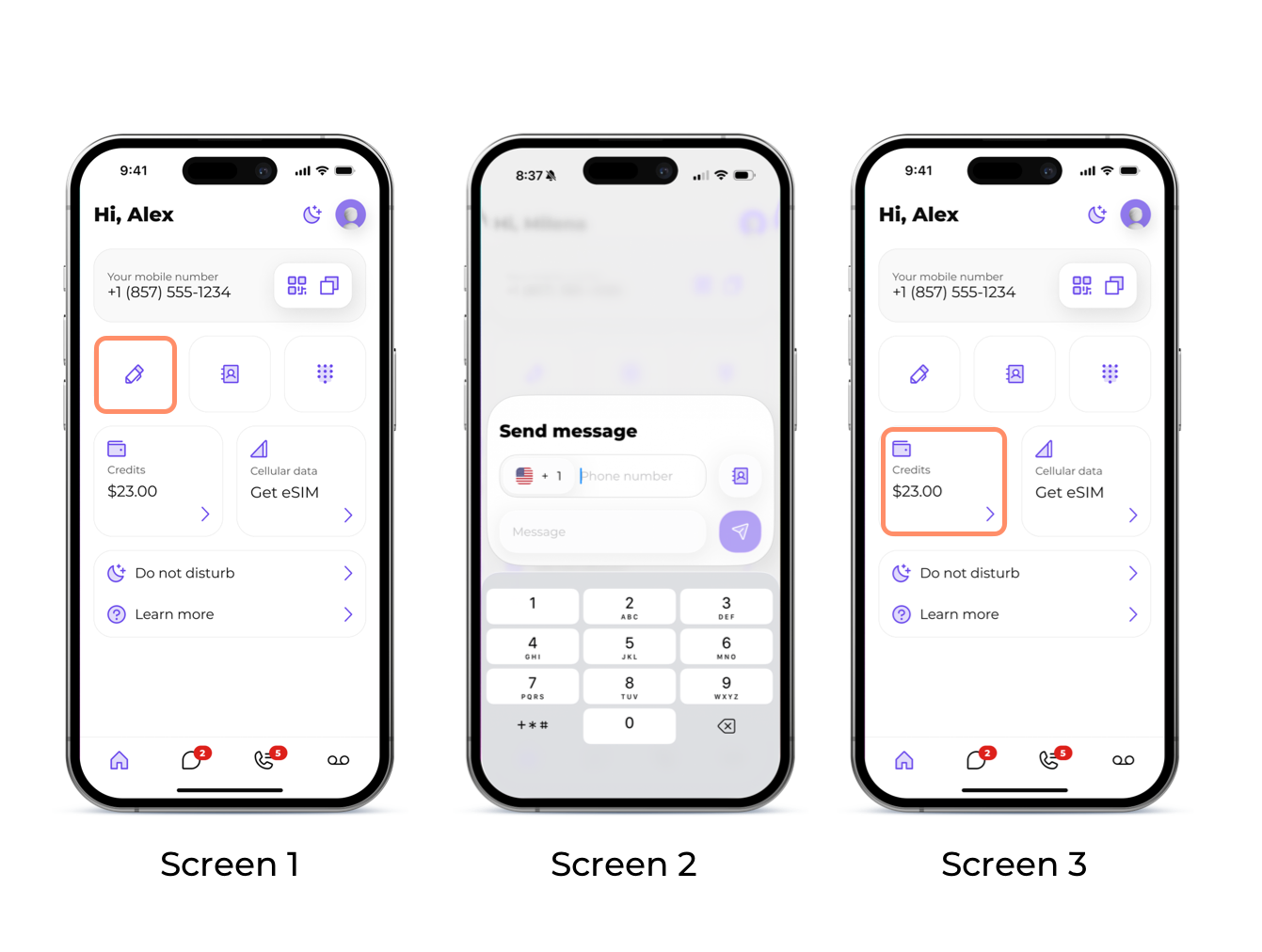
Step 1: To send your first message, open the home screen in the SLYNUMBER app (Screen 1)
Step 2: Click on the pen icon in the upper left part of the screen; from here, you can enter a number you would like to text and simply type in your message and hit send (Screen 2)
Note: When sending texts, you need to have outbound credits. You can always check your balance on the home screen in the 'credits' field (Screen 3)
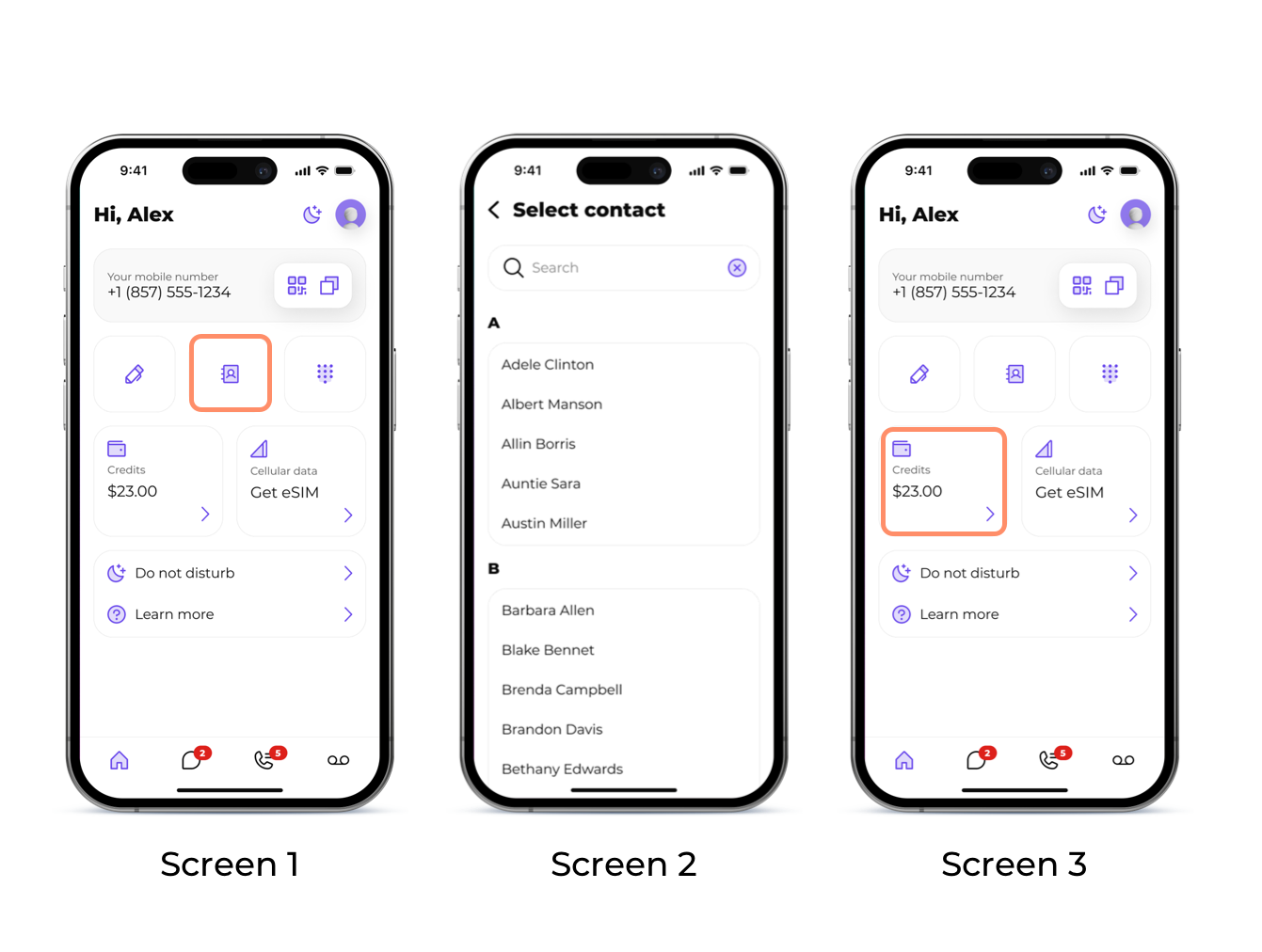
Step 1: To add credit, open the home screen in the SLYNUMBER app and click on the 'credits' field (Screen 1)
Step 2: Select the amount you would like to purchase and hit 'purchase'. The credits will be automatically added to your balance (Screen 2)
Download the SLYNUMBER app, choose your U.S. mobile number, and start using it instantly from anywhere in the world.
